3D Printer
Server Availability
✅ Chernarus
❌ Deer Isle
Overview
This guide provides step-by-step instructions on how to use the 3D Printer, including setting up power, selecting filaments, and utilizing encrypted USBs.
Key Components
To successfully operate the 3D Printer, you will need the following components:
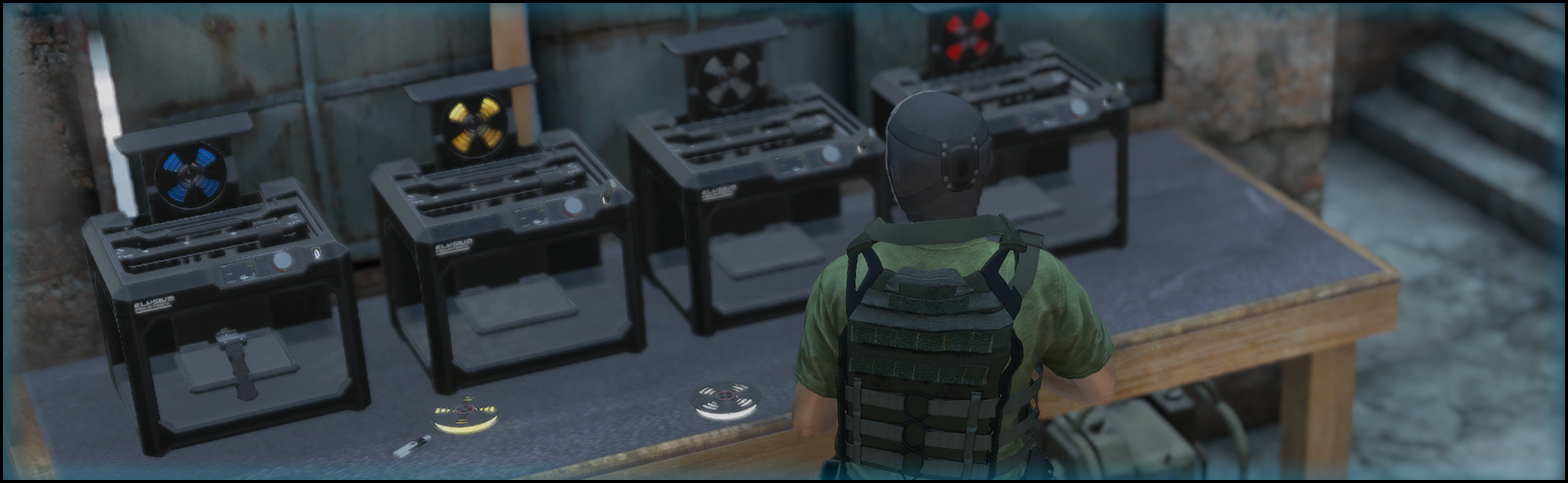
- 3D Printer – The main device for printing items.
- Filament – The material used for printing. There are 9 types available:
- Green, Yellow, Violet, Red, Blue, Light Blue, Orange, Silver, and Gold.
- USBs – Required for unlocking specific blueprints (unless the item is stored in "Memory").
- We have 15 different Encrypted USBs that can be found and used for various patterns.
- Power Source – Choose one of the following:
- Long-life Battery with Metal Wiring
- Truck Battery with Metal Wiring
- Generator (For a more permanent setup)
- Storage Options – Organize filaments using:
- Filament Bench – Holds up to 20 filaments (deployable via a kit).
- Filament Holder – Smaller storage with 10 slots.
Setting Up the 3D Printer
Follow these steps to set up and power your 3D Printer:
- Gather all necessary parts:
- 3D Printer
- Filament (based on the item you wish to print)
- USB (if required)
- Generator (or a Printer Battery)
- Sparkplug
- Place the 3D Printer and Power Source:
- Deploy the 3D Printer Kit.
- If using a Generator, place it near the printer.
- Connect the Power:
- Ensure the Cable Reel is connected between the Generator and 3D Printer.
- Activate the Power:
- Turn on the Generator or ensure the Battery is installed.
- The 3D Printer will now receive power.
Using the 3D Printer
Once powered, follow these steps to print items:
- Interact with the Printer UI:
- Press "F" to open the Print menu.
- Select an Item to Print:
- Each item will display:
- Required filament type
- Print time (varies)
- Use USBs for Special Prints:
- Some items require an Encrypted USB to unlock their blueprint.
- If an item is in Memory, it can be printed without a USB.
- Start Printing:
- If you have the correct materials and power, begin the printing process.
Additional Notes
- Filament Storage:
- Use Filament Benches or Filament Holders to organize filaments efficiently.
- Trading & Crafting:
- Filaments can be traded with other players or used to craft new items.